


 5
5
Your performance limit grows when your Shopify revenue flows through your Treyd Wallet. To unlock and keep your add-on, you point Shopify's payout account at your Treyd Wallet, so every sale lands where Treyd can see it.
This guide walks you through the guided setup, from finding your Wallet details in Treyd to updating your payout account in Shopify.
Before you start
Make sure you have:
- Your Shopify store connected to Treyd as a commerce connection
- Admin access to your Shopify store's payout settings
- A Treyd Wallet account for at least one currency Shopify pays you in
Tip: Shopify pays out per currency. You only need to route one currency to activate your add-on, and routing more currencies unlocks more capacity.
Why route payouts to your Wallet
Your performance limit has two parts: your standard limit and a flexible add-on. The add-on is offered because your commerce revenue flows through your Treyd Wallet. Routing your Shopify payouts to your wallet is what keeps that revenue visible to Treyd, so your add-on stays active and can grow.
Getting this right matters. If a payout that should reach your wallet lands in another account, your entire limit will be deactivated—not just the add-on. You can't place new orders until it's resolved. If this happens, reach out to Treyd support, and we'll help you get it sorted.
Step 1: Find your Treyd Wallet account details
You'll copy these into Shopify in the next step.
- Log in to Treyd.
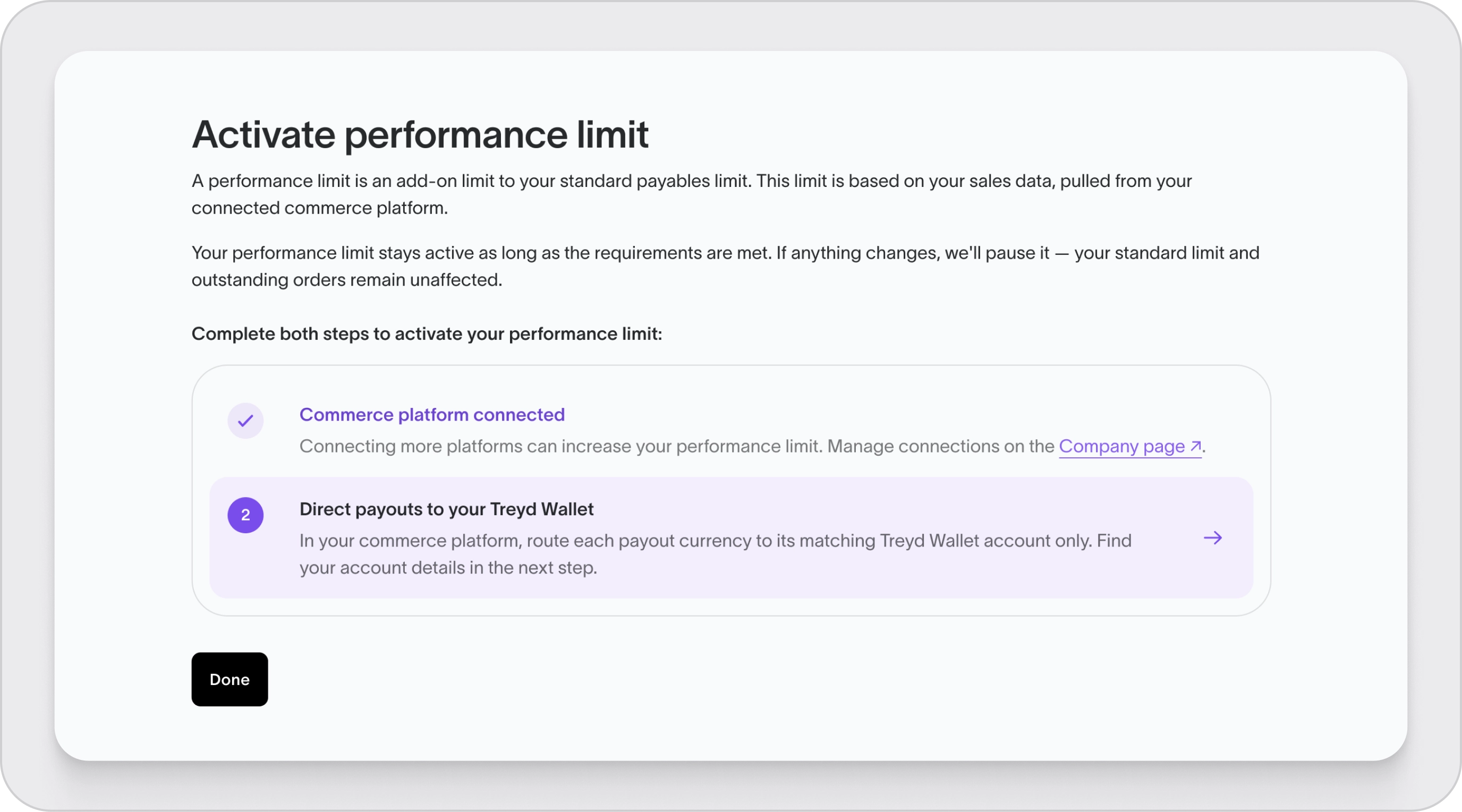
- From your Overview, open Activate performance limit, then select Direct payouts to your Treyd Wallet. You can also go straight to Wallet in the left-hand menu.
- In your payouts section, choose to change or add a bank account.
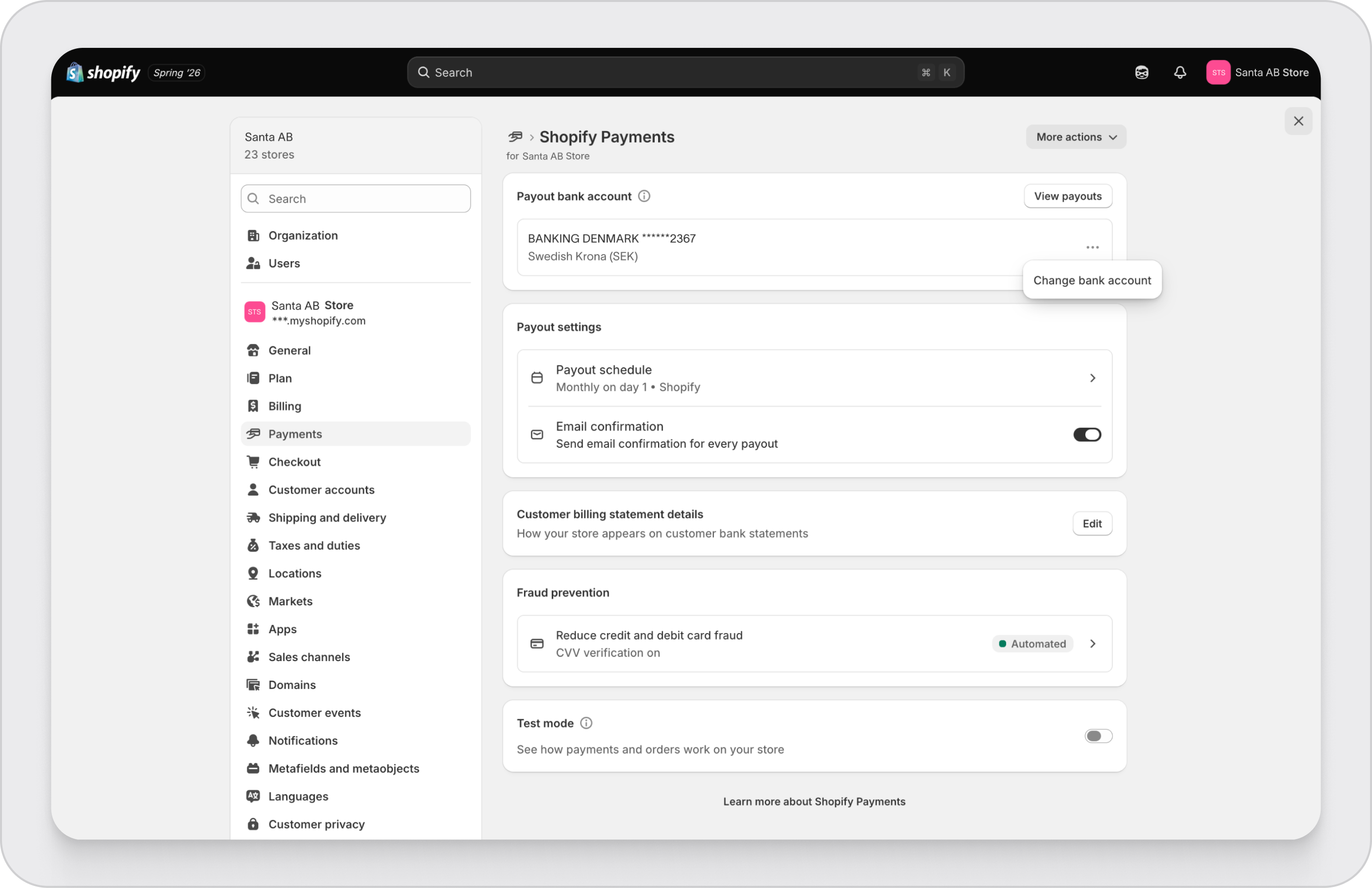
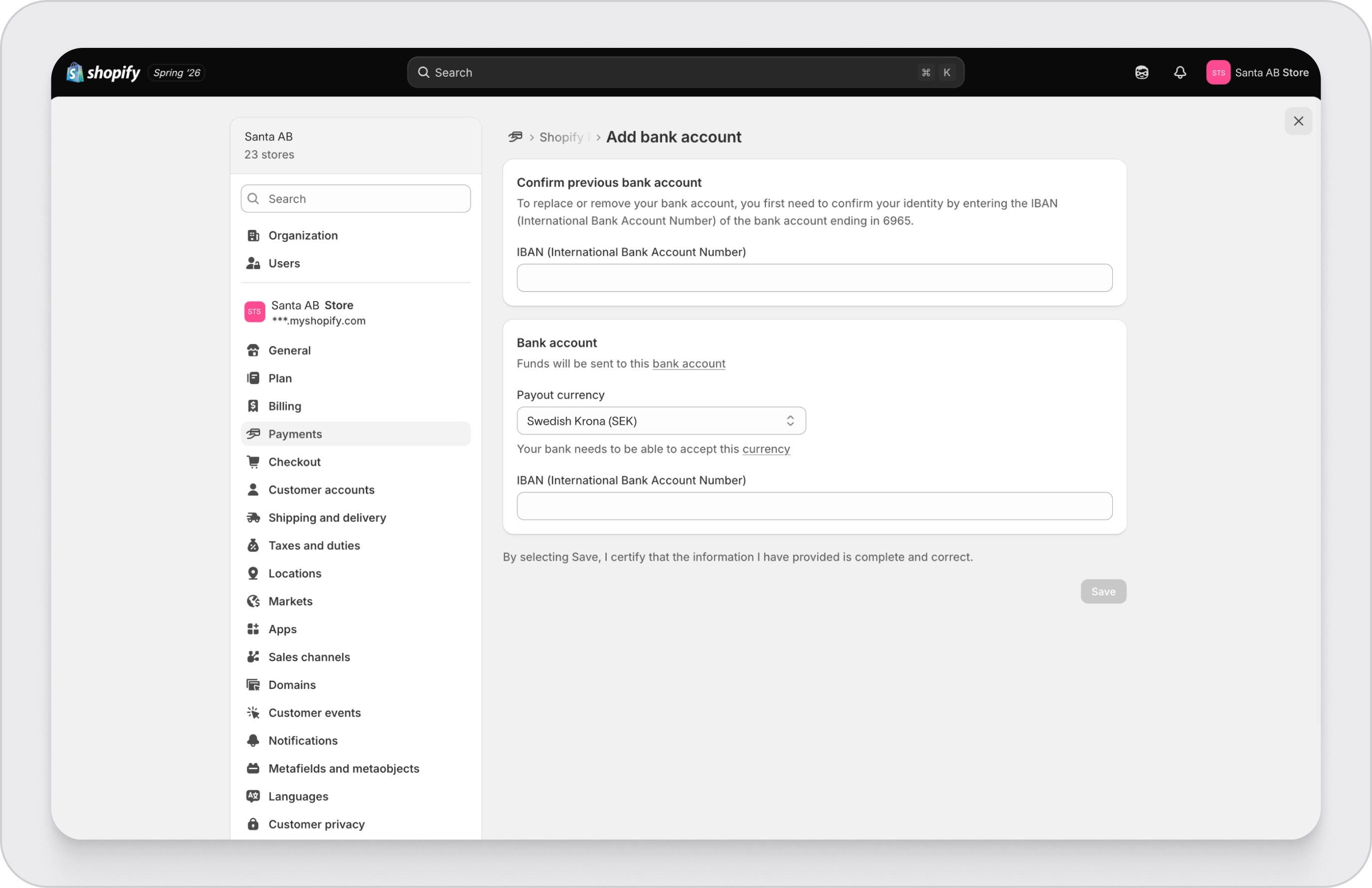
- In Account details, you'll find everything Shopify needs: account holder, account number, sort code or routing number, and bank details.
- Save your changes.
Grow your add-on
You don't need to route every currency — routing at least one activates your add-on. The more of your commerce revenue you route to your Treyd Wallet, the more capacity it can support:
- Connect more of your sales. Route each of your Shopify stores and sales channels to your Wallet. The more revenue Treyd can see landing there, the larger your add-on can grow.
- Route more currencies. Add each extra currency's Treyd Wallet details as a separate payout account in Shopify, repeating both steps above. Every currency you route adds to your add-on.
What happens next
- Your next Shopify payout lands in your Treyd Wallet.
- Once your payouts start landing in your wallet, your add-on is switched on automatically, with nothing extra to apply for.
- Your add-on updates on a regular cycle. You'll get an in-app message and an email whenever it changes.
Important to know
- Treyd checks your payout setup regularly. As long as your store is connected, your add-on stays on.
- If a payout later lands in a non-wallet account, this is treated as routing your revenue away. Your entire payables limit is deactivated, your account is set to inactive, and you can't place new orders until it's resolved.
- Existing orders always run to their agreed term. Changes to your limit only affect new orders.
Wrap-up
Your Shopify payouts now flow through your Treyd Wallet, keeping your commerce revenue visible to Treyd and your performance limit add-on active. Selling in a new currency later? Just add its matching wallet account in Shopify.

